Your WiFi Has a Weak Spot. Here’s How to Find It Before Someone Else Does.

The knock came on a Saturday afternoon.
His neighbor stood at the door, a little embarrassed. “Hey, just a heads up. I think someone got into your Wi-Fi. My kid tried your network name and guessed the password on the first try. It was still set to the factory default.”
He didn’t believe it at first. He pulled up his router app anyway.
Fourteen devices connected. He and his wife had five.
Nine devices he didn’t recognize. On his network. With access to everything.
This scenario plays out in homes across the country every day. Most people set up their router when they move in, never touch it again, and assume everything is fine.
It rarely is.
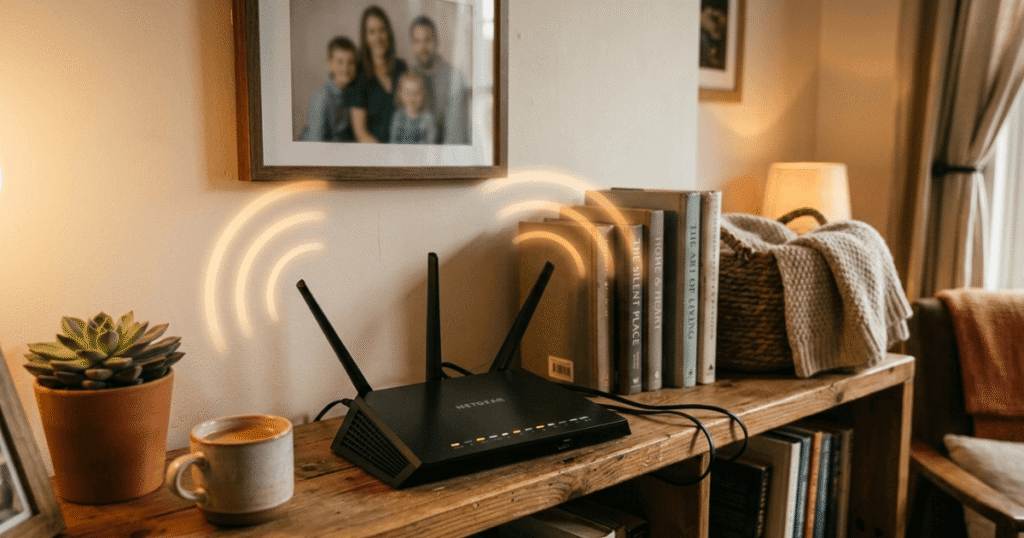
This opening scenario is illustrative and based on common patterns from cybersecurity reports. It does not represent a specific individual.
Why Your Home Network Is a Target
Your WiFi isn’t just for streaming movies and checking emails. It’s actually the front door to every device in your home. Your laptop. Your kids’ tablets. Your smart thermostat. Your security cameras. Everything.
And most home routers ship with the same default settings. The same default username. The same default password. The same factory network name.
As the NSA put it in their Best Practices for Securing Your Home Network guide, “your router is the gateway into your home network. Without proper security and patching, it is more likely to be compromised, which can lead to the compromise of other devices on the network as well.”
Think of your router as the digital front door to your home. You wouldn’t leave your house key in the lock for anyone walking by to find. Securing your router is simply putting a deadbolt on that door to keep your family’s personal devices and private information safe.
Neighbors can get in. So can people parked outside. So can malicious software that quietly hitches a ride into your home through one unsecured device.
The good news? Most of this is fixable in an afternoon.
Start Here: The Basics That Stop Most Attacks
Change Your Router’s Default Login
When your router arrived, it came with a default admin username and password. Something like “admin” and “password.” Every hacker on the internet knows these defaults.
Log in to your router’s settings. This is usually done by typing 192.168.1.1 into your browser’s address bar. If that doesn’t work, don’t worry, just look at the physical sticker on the back or bottom of your router. It usually lists the “Gateway” or “Admin” address and the temporary password you need to get in.
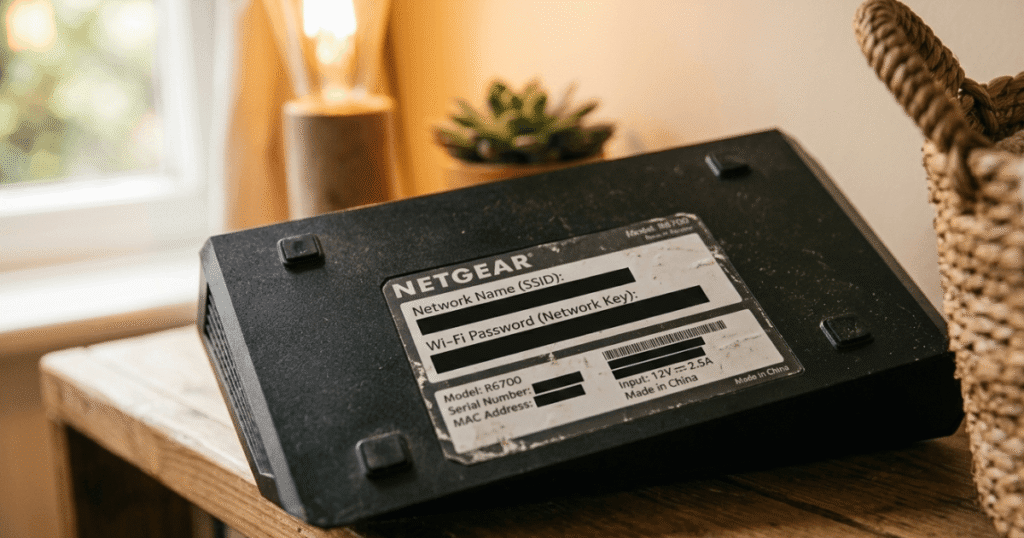
Note: If you use a modern mesh system like Eero or Google WiFi, you’ll do all of this in their official app rather than in a browser.
Update Your Router’s Firmware
Firmware is the internal software that runs your router. Just like your iPhone or Android phone needs “System Updates” to stay fast and safe, your router needs these updates to patch up any “digital holes” hackers might try to use. Manufacturers regularly release updates to fix security holes. Most people never install them.
The NSA recommends keeping your router up to date with the latest patches. Think of a “patch” just like a physical patch on a leaky pipe. When a security company finds a “hole” that a hacker could crawl through, they release a digital patch to plug it up. Keeping your router updated ensures those holes are sealed before anyone can use them.
Check your router’s settings panel for a firmware update option. If your router is more than five years old and no longer receiving updates from the manufacturer, it may be time to replace it.
Create a Strong Network Name and Password
Your network name (technically called an SSID) is simply the name you see on your phone when you are trying to connect to your WiFi. It shouldn’t be your last name, your address, or anything that identifies you. Change it to something neutral.
For your WiFi password, the NSA recommends a minimum length of twenty characters. That sounds like a lot, but a passphrase works well here. Something like “BlueDogRunsFastInJuly!” is long, memorable, and far harder to crack than “Smith2019.”
Switch to WPA3 Encryption (or WPA2 at Minimum)
Encryption is like a secret code for your data. It scrambles the information traveling between your laptop and your router so that even if a neighbor “overhears” the signal, they can’t read your emails or see your passwords. WPA3 is simply the newest, strongest version of this secret code.
The NSA recommends WPA3 as the current standard. The FCC similarly recommends using WPA3 if your devices are compatible, or WPA2 for older ones, as these provide much stronger encryption than the obsolete WEP. If your devices don’t all support WPA3 yet, you can usually select a WPA2/3 mixed mode in your router settings that lets newer devices use the stronger protection while older ones still connect.
Never use WEP. It’s an outdated encryption standard that can be cracked in minutes.
Go a Step Further: The Settings Most People Never Touch
Turn Off WPS and UPnP
WPS (WiFi Protected Setup) was designed to make connecting new devices easier. It also makes it easier for attackers to get in. Disable it.
UPnP is a setting that lets your gadgets talk to the internet without asking your permission first. While it’s meant to be convenient, it’s like leaving a side window unlocked so delivery drivers can drop packages inside your house. It’s handy, but it’s a huge security risk. The NSA recommends disabling it to close holes that may enable an attacker to compromise your network.
Both are usually found in your router’s advanced settings. Turn them off.
Set Up a Guest Network
This is one of the most useful things you can do, and most people have never tried it.
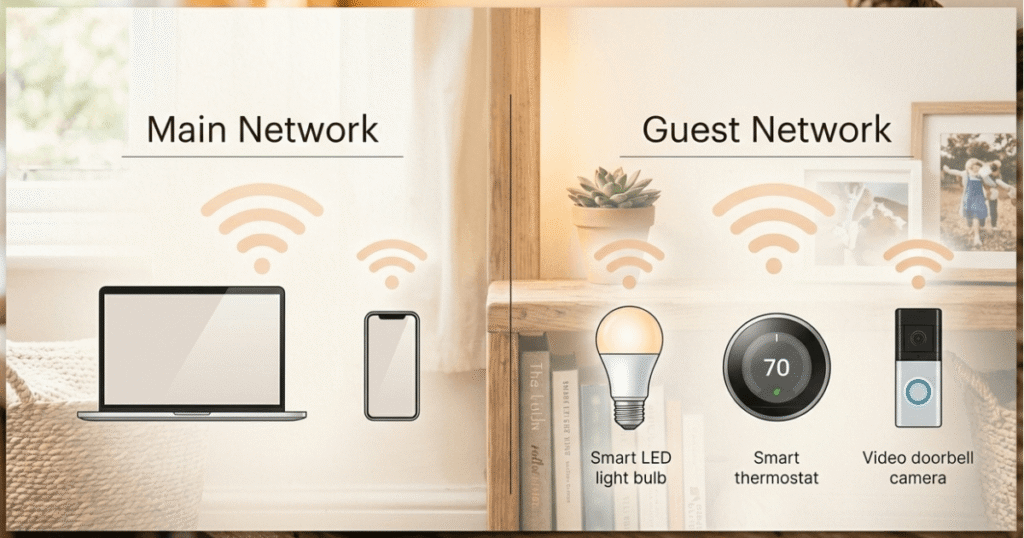
A guest network is a separate WiFi network that runs alongside your main one. Visitors connect to that instead of your primary network. More importantly, your smart home devices, such as thermostats, cameras, doorbells, and smart speakers, should go on the guest network too.
Why? Because IoT devices (that’s the term for internet-connected gadgets) often have weaker security than computers and phones. If one gets compromised, a guest network keeps the attacker isolated. They can’t reach your laptop or your bank login from there.
The NSA recommends segmenting your network into at least primary WiFi, guest WiFi, and IoT devices.
Disable Remote Management
Most routers have a feature that lets you manage them from anywhere on the internet. Unless you specifically need this, disable it. The NSA recommends limiting router administration to your internal network, meaning changes should be made only when you’re connected to your own WiFi.
Make Sure Your Firewall Is On
Your router likely has a built-in firewall. Check that it’s enabled in your settings. The NSA also notes that if your internet provider supports the modern internet protocol, Internet Protocol version 6 (IPv6), make sure your router has IPv6 firewall capabilities enabled as well.
Smart Home Devices Need Special Attention
NIST cybersecurity researcher Julie Haney points out that it’s becoming hard to find household items without connected features. Washers, dryers, baby monitors, doorbells, lightbulbs — they all connect to the internet now.
That’s a lot of potential entry points.
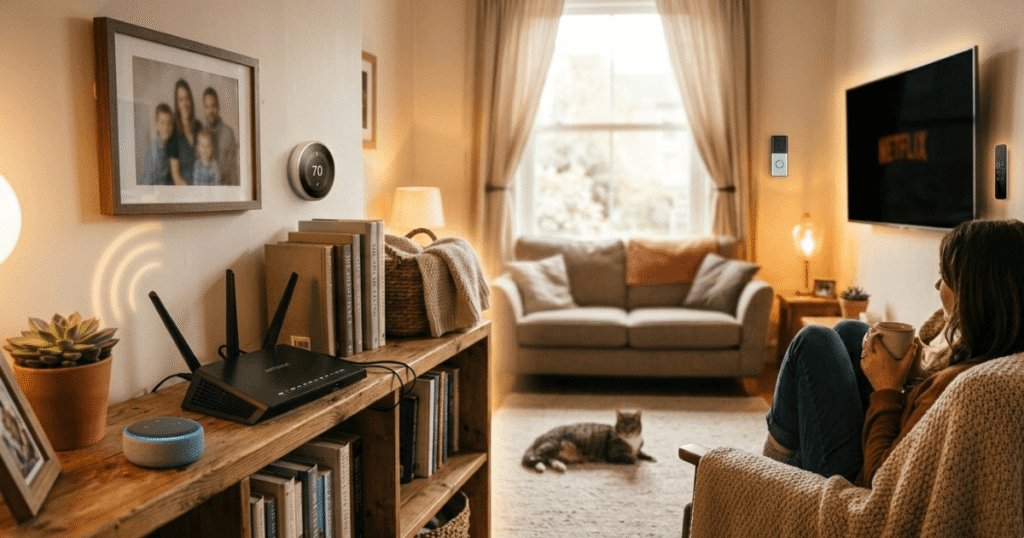
The NSA’s guidance notes that home entertainment and utility devices are capable of accessing the internet, recording audio, and even capturing video. If compromised, an attacker could eavesdrop on conversations through a home assistant or baby monitor.
A few simple habits help:
- Put all smart home devices on your guest network, separate from your computers and phones (NSA and NIST both recommend network segmentation for IoT devices)
- Follow NSA guidance: mute smart speakers’ microphones when having private conversations, and cover laptop and device cameras when not in use
- Disconnect smart devices from the internet when you’re away for an extended period, like a vacation (per NSA recommendations)
Habits That Keep You Safe Over Time
Reboot Your Router Weekly
This sounds too simple to matter. It isn’t. The NSA specifically recommends scheduling at least weekly reboots of your routing device. Some types of malware that infect routers can’t survive a reboot. It’s one of the easiest things you can do.
Use a VPN When You’re Not at Home
When you connect to a public Wi-Fi network at a coffee shop, hotel, or airport, your data is visible to anyone on that network.

A VPN (Virtual Private Network) is an app that creates a private, armored tunnel for your internet connection. When you’re using public Wi-Fi at a coffee shop, the VPN hides your activity from everyone else in the shop.
A VPN is also worth using at home if you work remotely and access company systems. It creates an encrypted tunnel between your device and your workplace network.
Keep Every Device Updated
Your router isn’t the only device that needs updates. Every computer, phone, tablet, and other smart device on your network should be running the latest software. The NSA recommends enabling automatic updates wherever possible and manually checking for updates monthly for devices that don’t support automatic updates.
The FTC echoes this advice, recommending that you update your internet-connected devices regularly, including checking for firmware updates on the manufacturer’s website and using the most up-to-date apps.
Use Strong, Unique Passwords Everywhere
The NSA’s guidance is clear: use a different password for every account, and use a password manager to create and store them. If a single password is compromised in a breach, unique passwords keep every other account safe.
Turn On Multi-Factor Authentication
Even if someone gets your password, multi-factor authentication (MFA) stops them from getting in without a second form of verification. Multi-Factor Authentication (MFA) is just a fancy way of saying “Two-Step Login.” It’s like having a door that requires both a physical key and a fingerprint. Even if a hacker steals your password, they still can’t get in because they don’t have that second “key” (usually a code sent to your phone). The NSA recommends using app-based authentication over text message codes when possible, as phone numbers can be hijacked.
Check Your Network Right Now
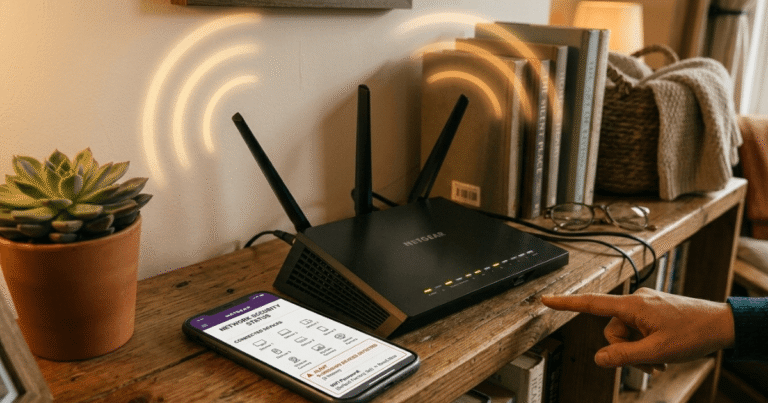
You don’t have to wait to find out if someone’s on your network. Most routers have a list of connected devices in their settings panel. Pull it up and count the devices. If you see more than you expect, it’s worth investigating.
You can also search your router manufacturer’s name plus “connected devices” to find step-by-step instructions for your specific model.
The SANS Institute’s Residential Wireless Network Audit checklist is a free resource that walks through a more detailed security review of your home network if you want to go further.
Note: This checklist is a solid foundation and remains relevant for many basics, though some newer standards like WPA3 are covered more fully in recent NSA and FCC guidance.
One Step at a Time
If this list feels like a lot, treat it like home maintenance. You don’t have to clean the whole house in one afternoon. Start with the password today, and try the guest network tomorrow. Every single change you make makes your home significantly safer than it was yesterday.
Your WiFi Security Checklist
Do this today:
- Log in to your router and change the default admin username and password
- Change your WiFi network name to something that doesn’t identify you
- Set a WiFi password of at least 20 characters
- Check your encryption setting and switch to WPA3 or WPA2 if needed
- Look at the connected devices list and identify anything unfamiliar
Do this this week:
- Check for and install firmware updates on your router
- Turn off WPS and UPnP in your router’s advanced settings
- Set up a guest network and move smart home devices onto it
- Disable remote management
Ongoing habits:
- Reboot your router once a week
- Keep all devices updated
- Use a VPN on public WiFi
- Enable multi-factor authentication on important accounts
The Honest Truth About Home Network Security
You don’t need to be a tech expert to do any of this. Every step above is a setting change, a reboot, or a password update. None of it requires special equipment or technical knowledge.
Most home network breaches don’t happen because someone built an elaborate attack. They happen because a router still had the default password from 2018. Because a neighbor noticed the network was open. Because one smart device with weak security became the way in.
Those nine unknown devices? Gone the moment he set a password and locked down his router. Thirty minutes of work.
Yours can be too. Start with the checklist. One step at a time.
Resources
- CISA – Securing Your Home Wi-Fi: https://www.cisa.gov/audiences/high-risk-communities/projectupskill/module5
- FCC – Wireless Security Tips: https://www.fcc.gov/consumers/guides/how-protect-yourself-online
- FTC – Securing Internet-Connected Devices: https://consumer.ftc.gov/articles/securing-your-internet-connected-devices-home
- NSA – Best Practices for Securing Your Home Network: https://www.nsa.gov/Press-Room/News-Highlights/Article/Article/3304674/nsa-releases-best-practices-for-securing-your-home-network
- NIST – 7 Tips to Keep Your Smart Home Safer: https://www.nist.gov/blogs/taking-measure/7-tips-keep-your-smart-home-safer-and-more-private-nist-cybersecurity
- SANS Institute – Residential Wireless Network Audit Checklist: https://www.sans.org/media/score/checklists/ResidentialWirelessNetworkAudit.pdf
Sources & References
- NSA – Best Practices for Securing Your Home Network (Cybersecurity Information Sheet)
https://media.defense.gov/2023/Feb/22/2003165170/-1/-1/0/CSI_BEST_PRACTICES_FOR_SECURING_YOUR_HOME_NETWORK.PDF
(Published February 2023, accessed February 2026) - NIST – 7 Tips to Keep Your Smart Home Safer and More Private
https://www.nist.gov/blogs/taking-measure/7-tips-keep-your-smart-home-safer-and-more-private-nist-cybersecurity
(Published April 2, 2025, accessed February 2026) - FTC – Securing Your Internet-Connected Devices at Home
https://consumer.ftc.gov/articles/securing-your-internet-connected-devices-home
(Accessed February 2026) - FCC – How to Protect Yourself Online
https://www.fcc.gov/consumers/guides/how-protect-yourself-online
(Accessed February 2026) - CISA – Module 5: Securing Your Home Wi-Fi
https://www.cisa.gov/audiences/high-risk-communities/projectupskill/module5
(Accessed February 2026) - SANS Institute – Residential Wireless Network Audit Checklist
https://www.sans.org/media/score/checklists/ResidentialWirelessNetworkAudit.pdf
(Accessed February 2026)
This article is for informational purposes only. It does not constitute professional cybersecurity consulting, legal advice, or financial advice. For specific concerns about your home network security, consult a qualified professional. The opening scenario is illustrative and based on common patterns from cybersecurity guidance and reports, not a specific individual case.